SinShield Editorial · · 11 min read
How to Block Adult Content on Instagram
Reduce sexual and suggestive content on Instagram with Sensitive Content Control, recommendation feedback, privacy settings, and an optional Android blocker.

Adult content can reach you on Instagram even when you did not search for it. The app combines posts from accounts you chose to follow with recommended content in Feed, Reels, Explore, and Search; Meta explains that recommendations can come from accounts you do not follow and become personalized over time according to the content and accounts you interact with.
That creates several separate routes to an unwanted image. An account you already follow can change what it posts or share somebody else's Reel, Instagram can recommend a post from an unfamiliar account because it predicts that the subject is relevant to you, and public posts can surface through reposts or activity from friends. Content sent in a Direct Message follows another route and is not governed by recommendation preferences.
Instagram removes adult nudity and sexual activity that violate its rules, but some sexually suggestive material is allowed to remain. That is why a post can appear without being a moderation mistake, while another can slip through because it was not recognized or reported. This guide explains which route each control affects in the current Instagram Android app; menu names may move as the app changes.
What Instagram's adult-content setting actually blocks
Instagram generally removes adult nudity and sexual activity that violate its rules, but it treats some sexually suggestive material differently. A post can be allowed on the platform while still being considered sensitive enough to limit in recommendations.
Meta describes sensitive content as material that may be upsetting without necessarily breaking its rules, including some sexually suggestive or violent posts. Sensitive Content Control is therefore a recommendation filter, not a promise that no suggestive image will ever appear.
The distinction matters because the Less setting mainly changes recommendations from accounts you do not follow. It does not clean up accounts you already follow, inspect every Direct Message, or turn Instagram into a child-safe app.
How to reduce adult content in Instagram recommendations
1. Open Content preferences
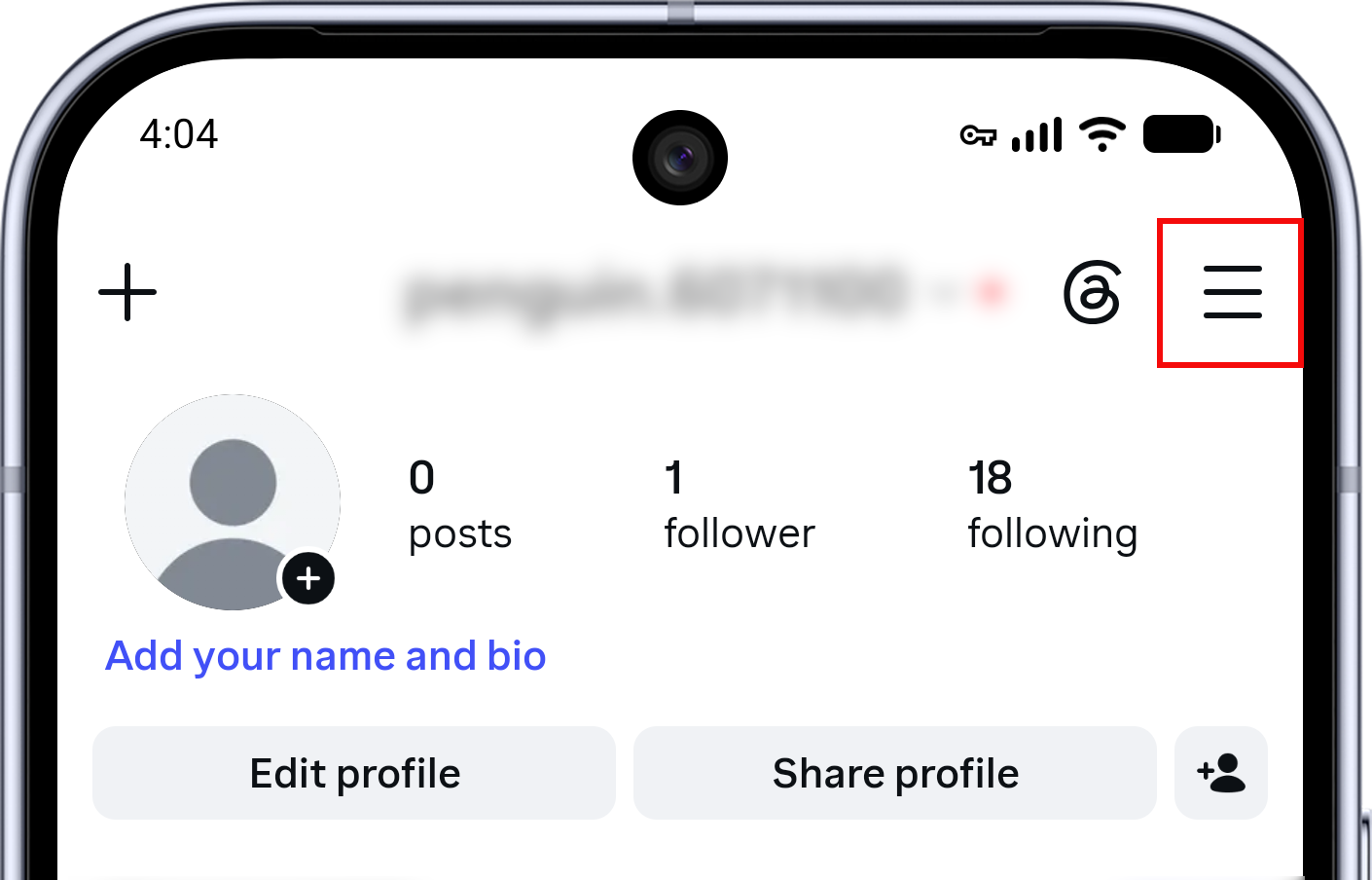
From your profile, tap the three-line menu in the upper-right corner.
On Settings and activity, scroll to What you see and choose Content preferences.
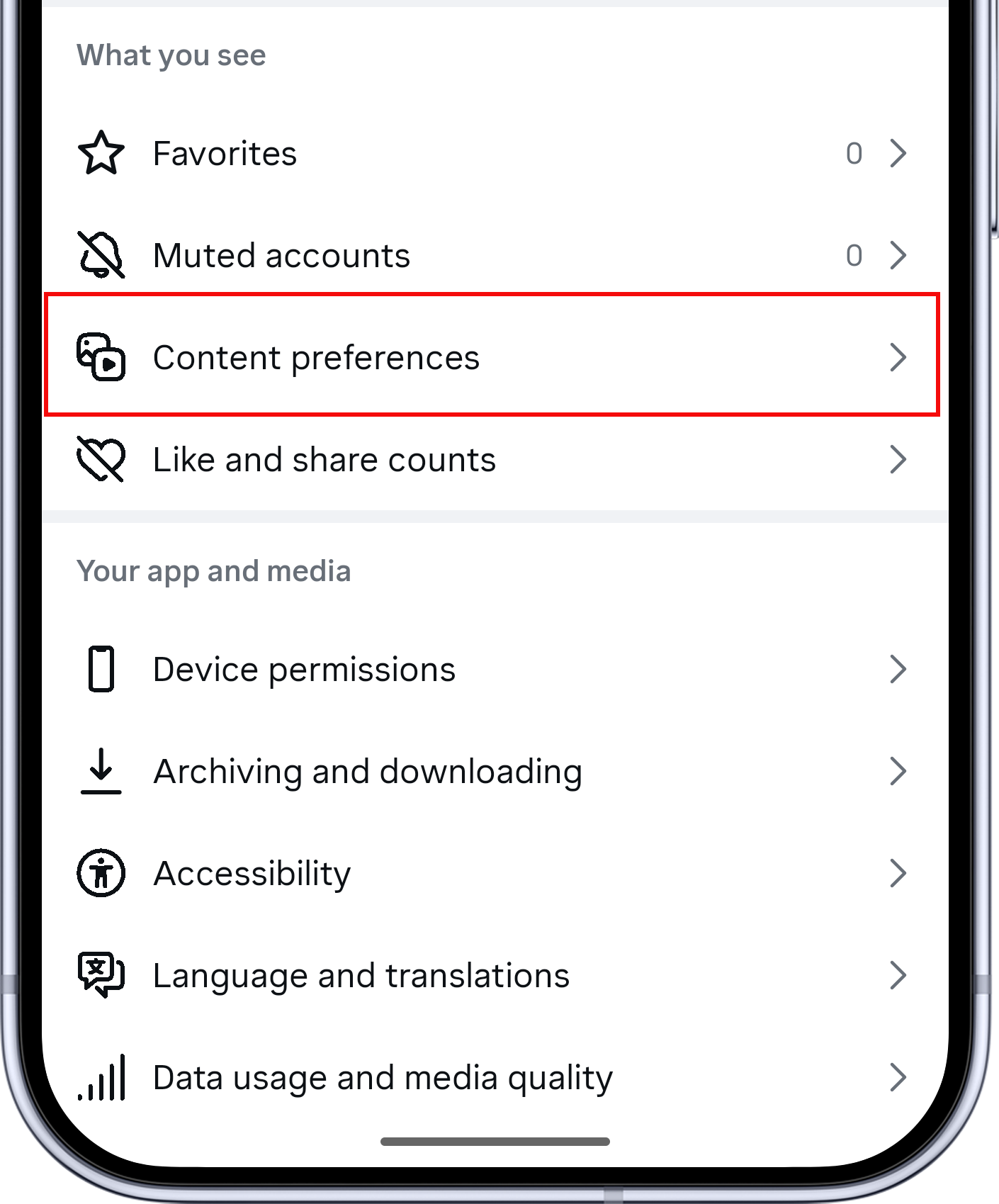
If Instagram has rearranged the menu, use the settings search box for Sensitive content instead of trying to match every screen exactly.
2. Set Sensitive content to Less
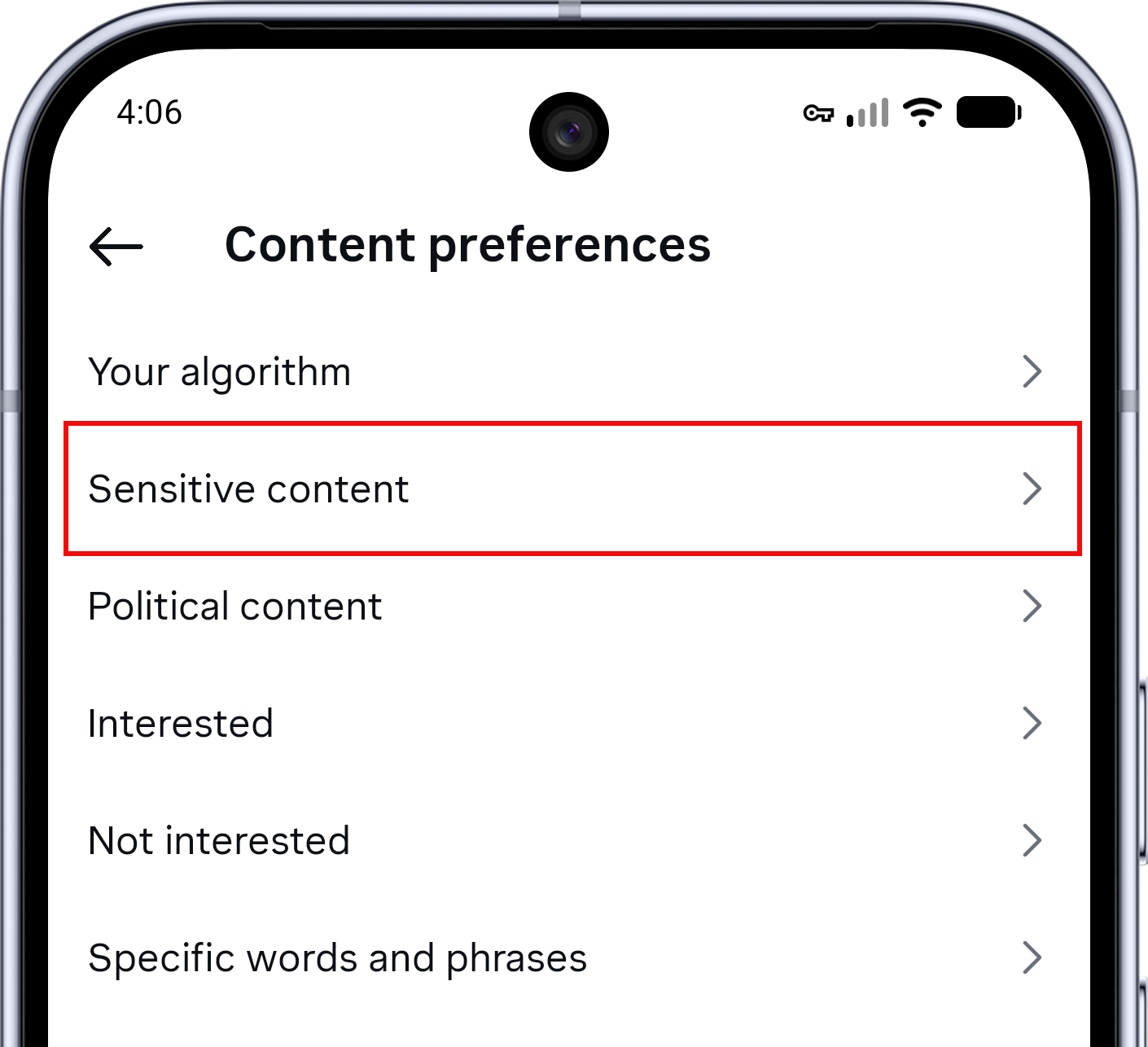
Open Sensitive content.
Select Less. This asks Instagram to show fewer sensitive recommendations in places such as Explore, Search, Reels, suggested accounts, hashtag pages, and recommendations in your feed.
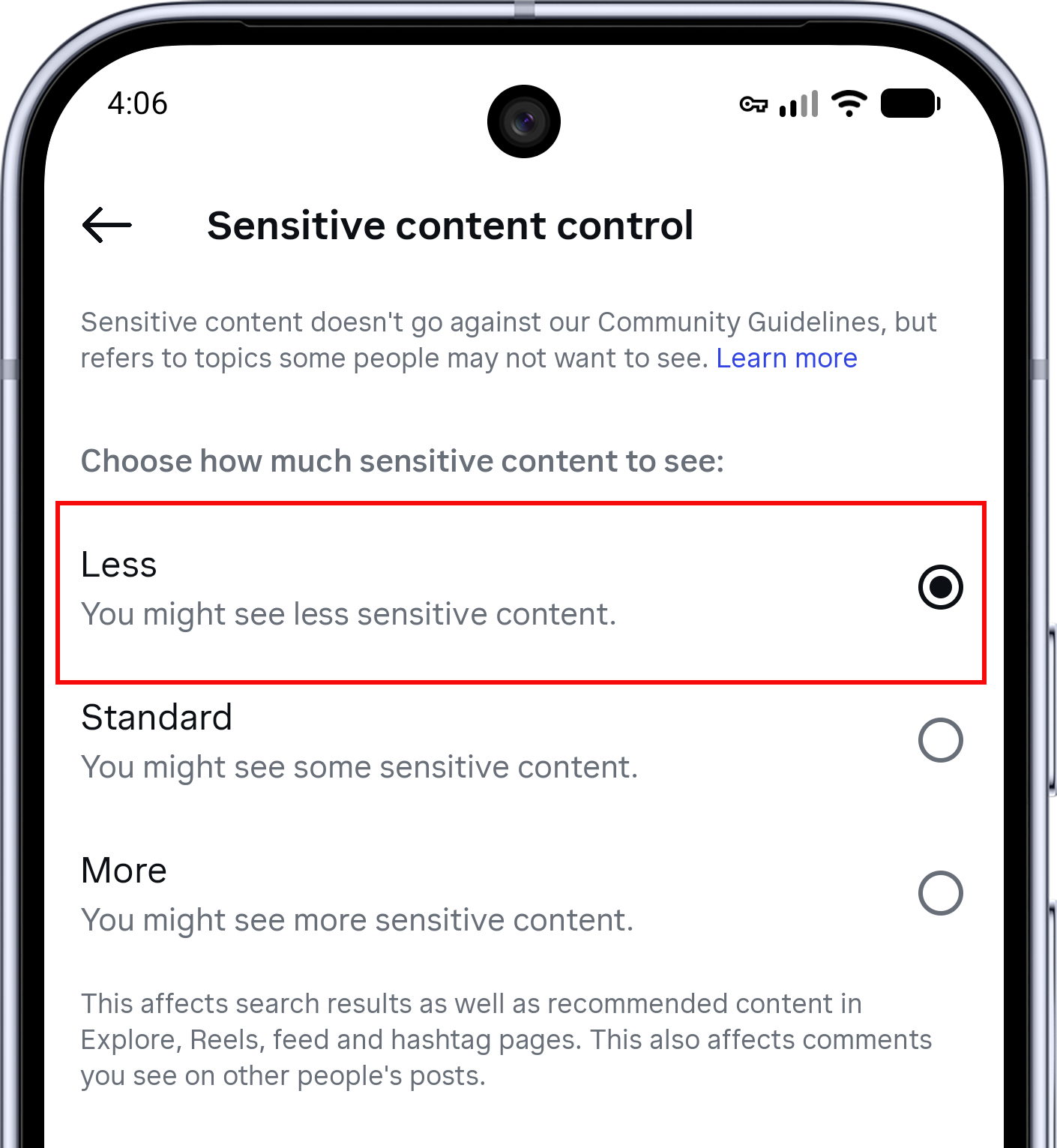
Do not choose More if your goal is to avoid sexual or suggestive material. Teen Accounts are placed into stricter recommendation settings by default, and Meta says its teen protections make potentially sensitive accounts and content harder to find in Search and Explore.
Tell Instagram what you do not want to see
When an unwanted suggested post appears, tap its three-dot menu and choose Not interested. Instagram should confirm that it will suggest fewer posts like it. Make the choice quickly and leave the post rather than opening the profile or reading its comments.
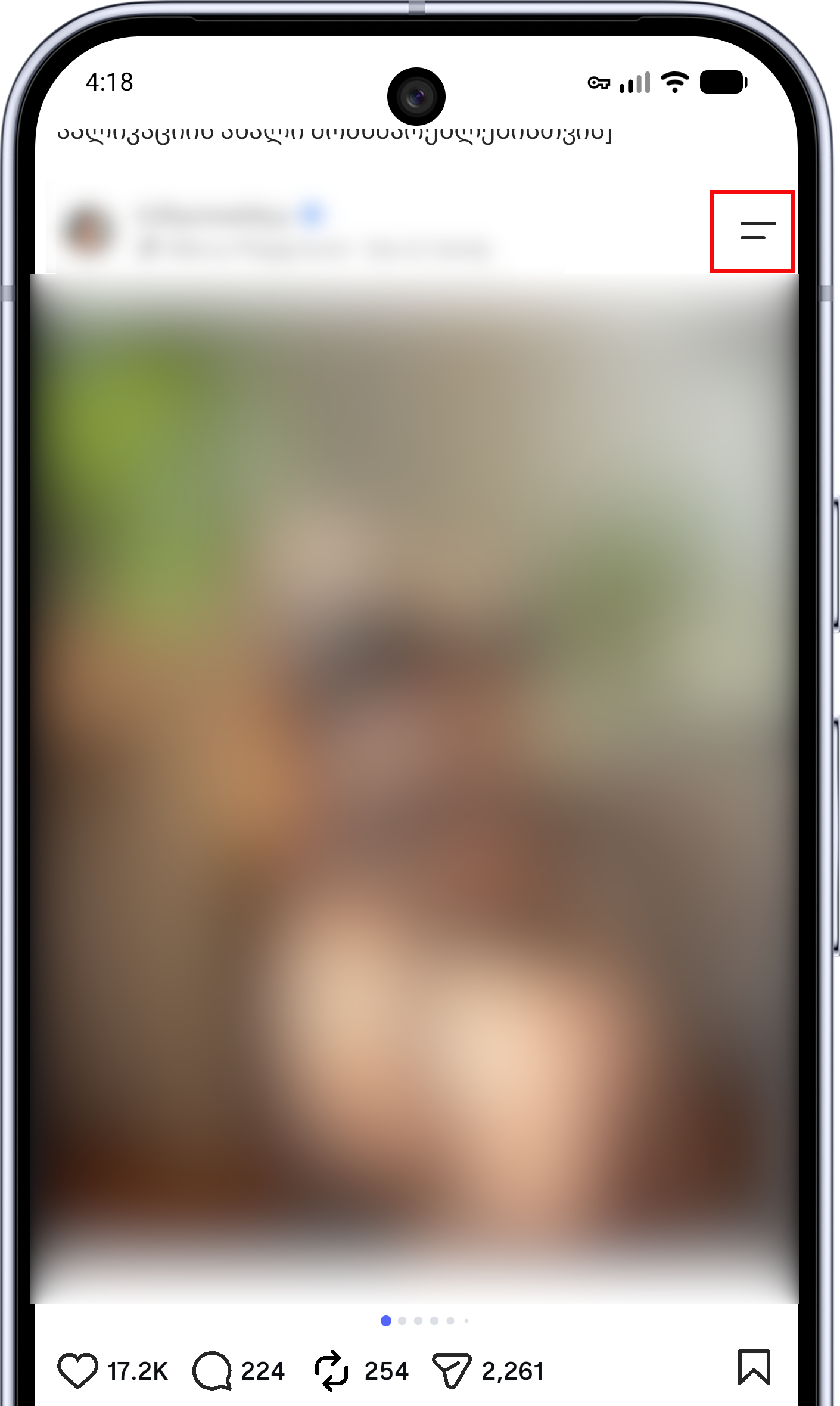
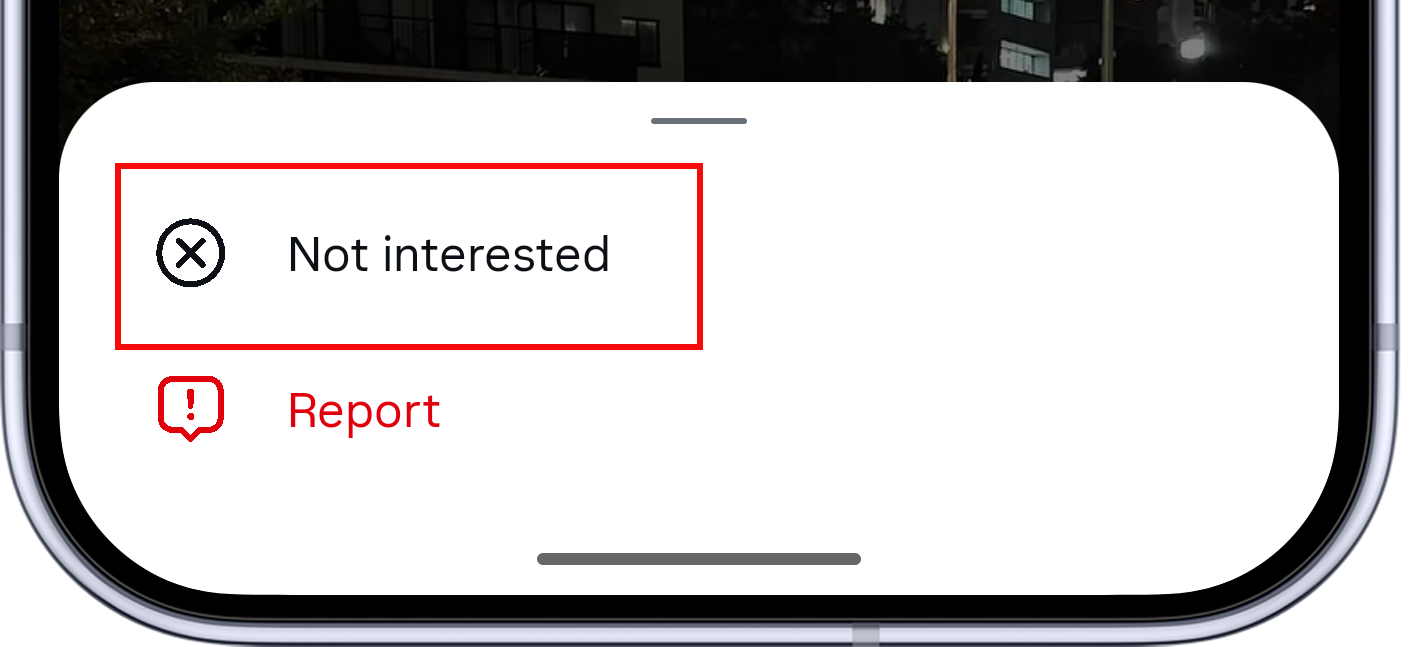
This is not an instant block for every similar image. Meta says choosing Not interested removes that recommendation and helps Instagram suggest fewer similar posts in the future, so repeat the action when the same pattern returns.
For an account you already follow, use the option that fits the situation:
- Unfollow it when you no longer want its posts in your feed.
- Mute it when you want to stay connected without seeing its posts or Stories.
- Block it when you do not want the account to find or contact you.
- Report a post when you believe it violates Instagram's rules, rather than merely being an unwanted but permitted recommendation.
Tighten comments and account privacy when contact is the problem
If sexual comments, spam, or unwanted contact are reaching you through other people, review Comments, Messages and story replies, Tags and mentions, and Restricted accounts under How others can interact with you.
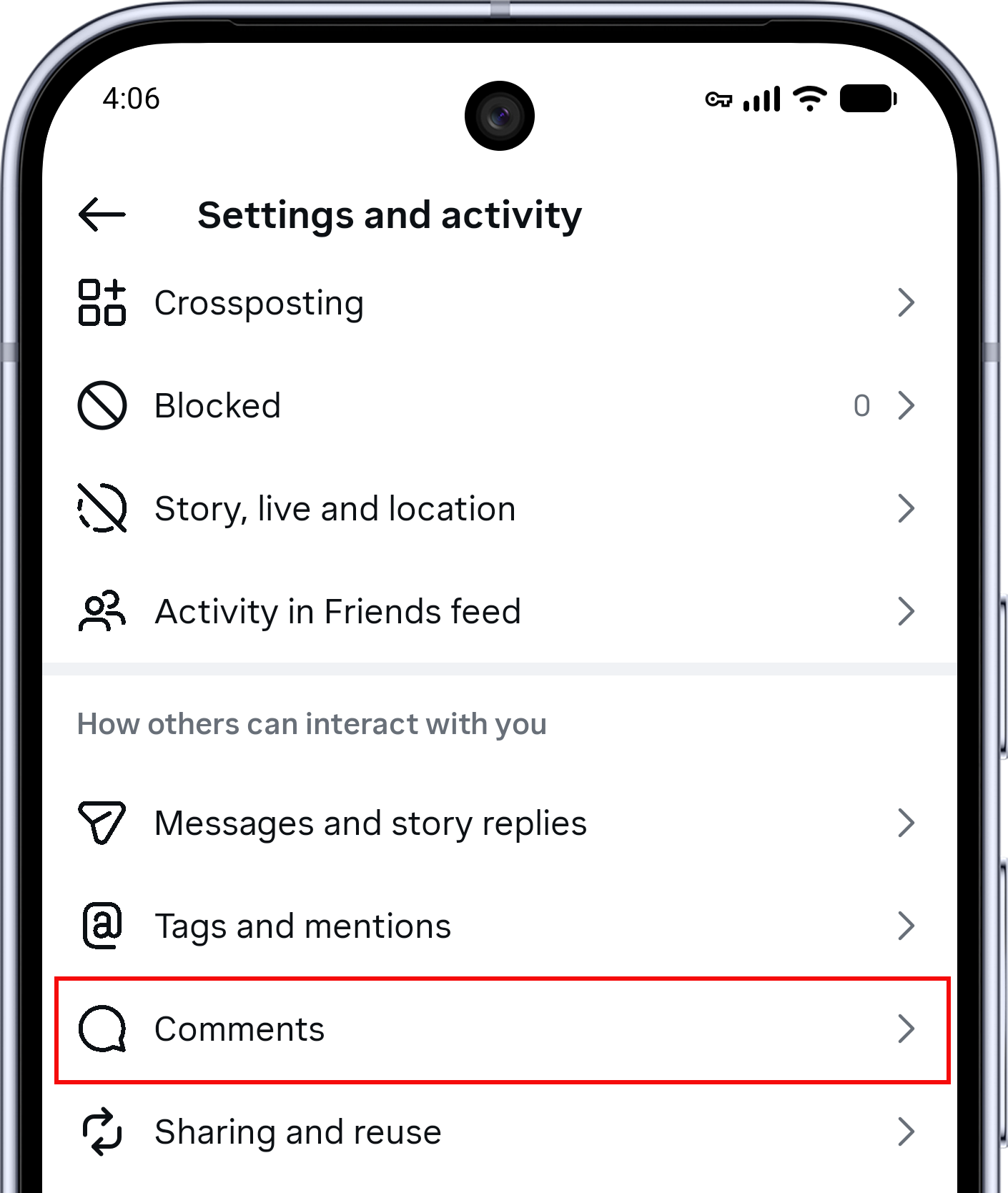
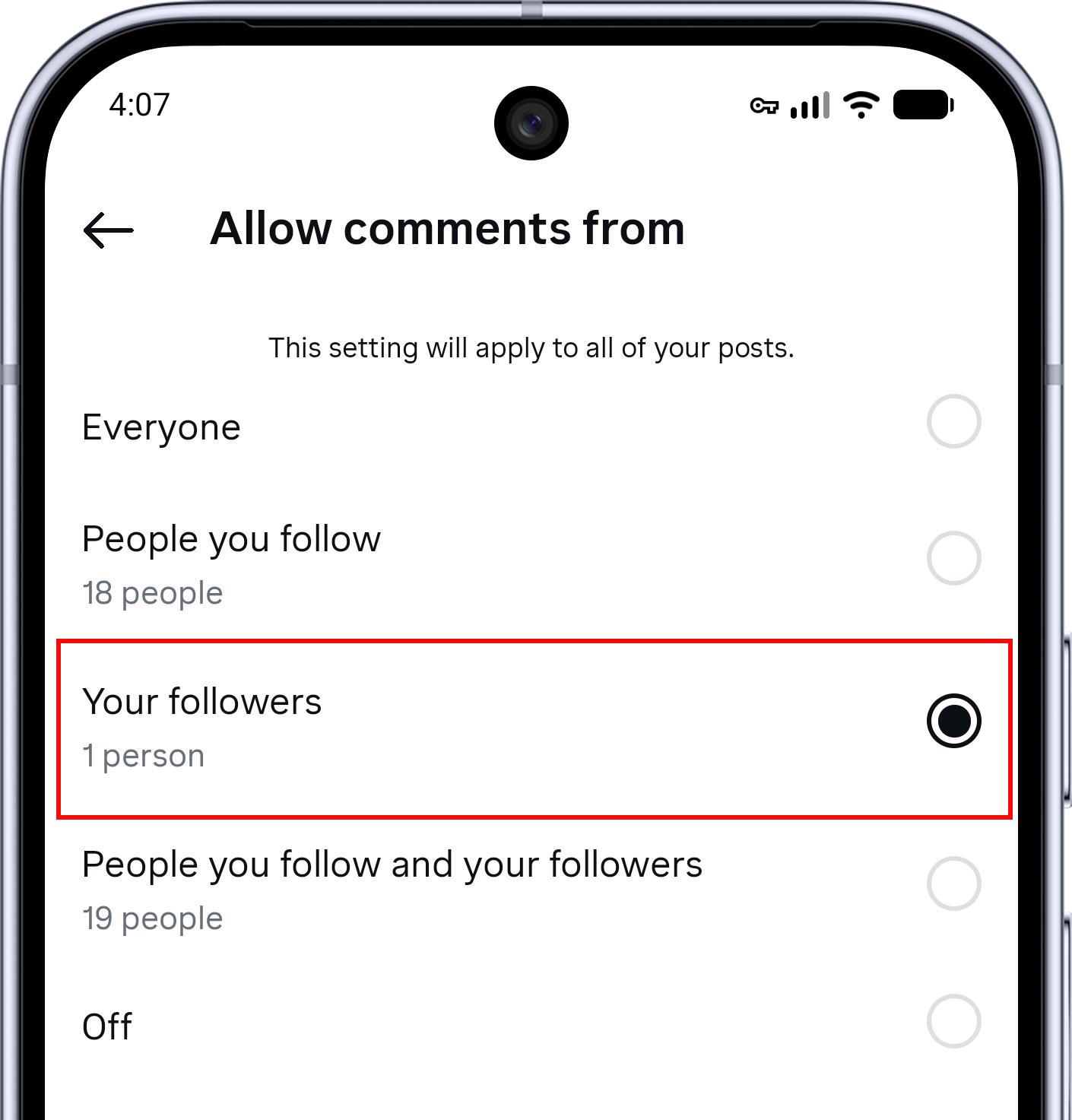
Inside Comments, choose Posts and reels under Who can comment.
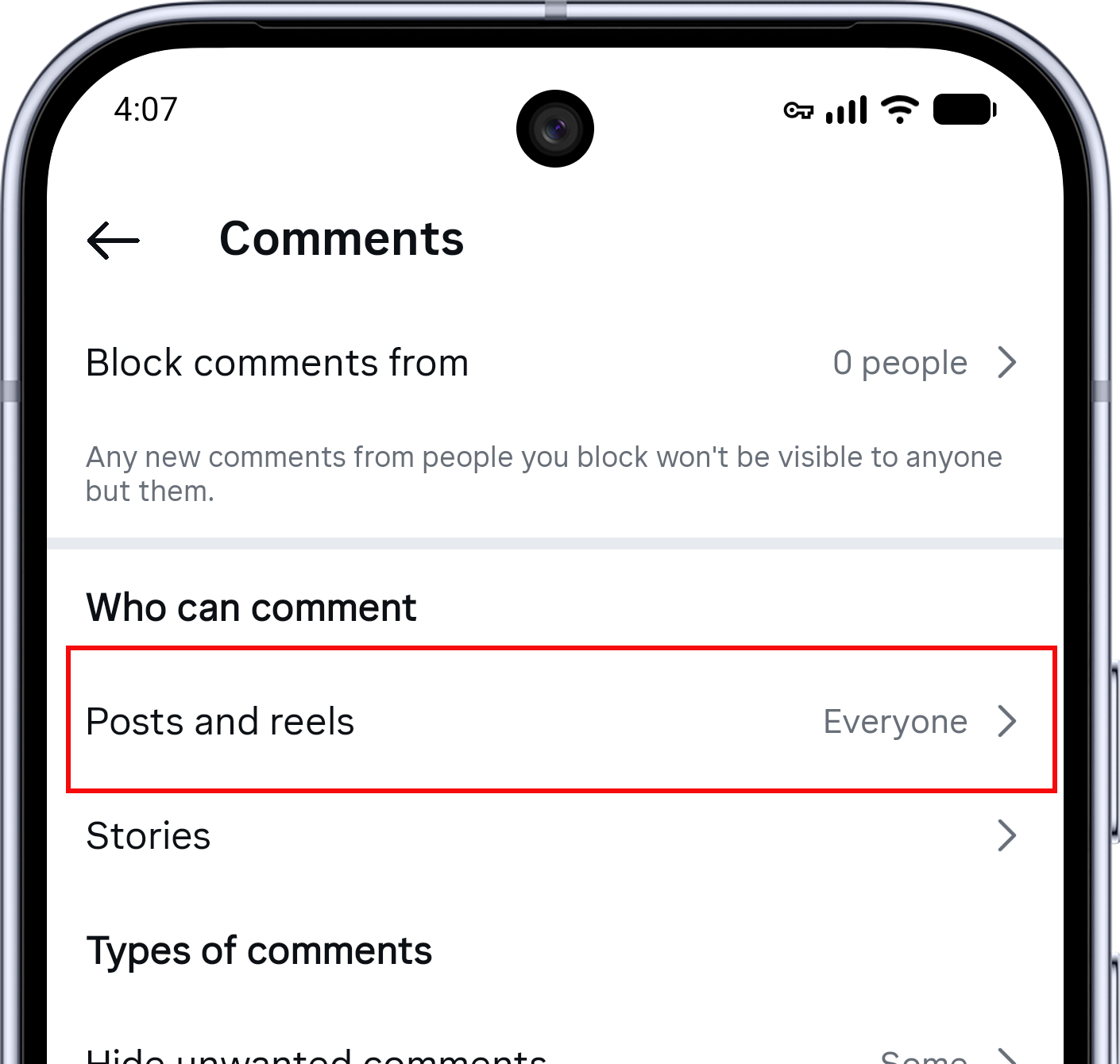
Choose the narrowest audience that still fits how you use Instagram. For example, Your followers keeps comments available to people following you, while Off is the stronger choice when you do not need comments at all.
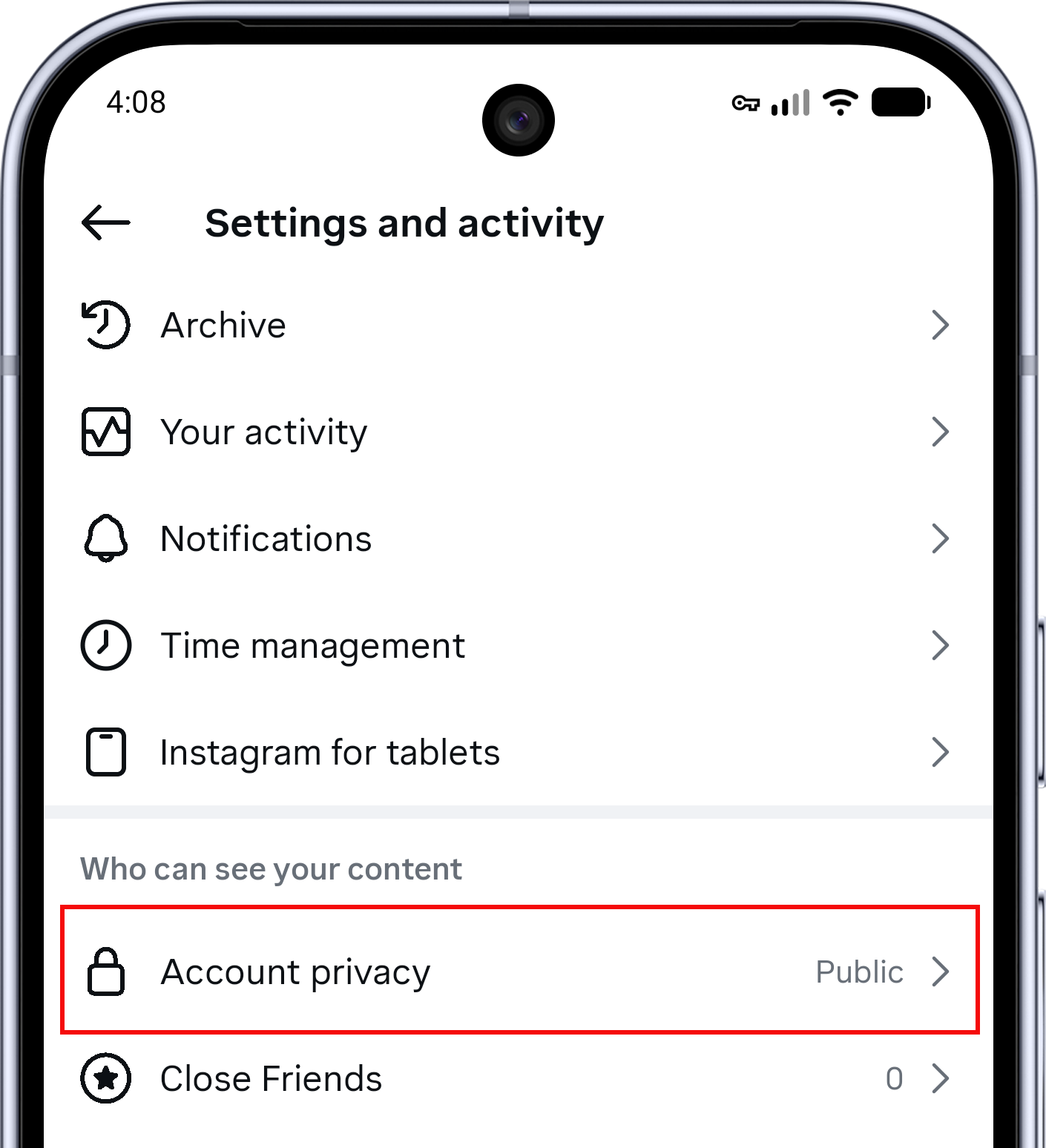
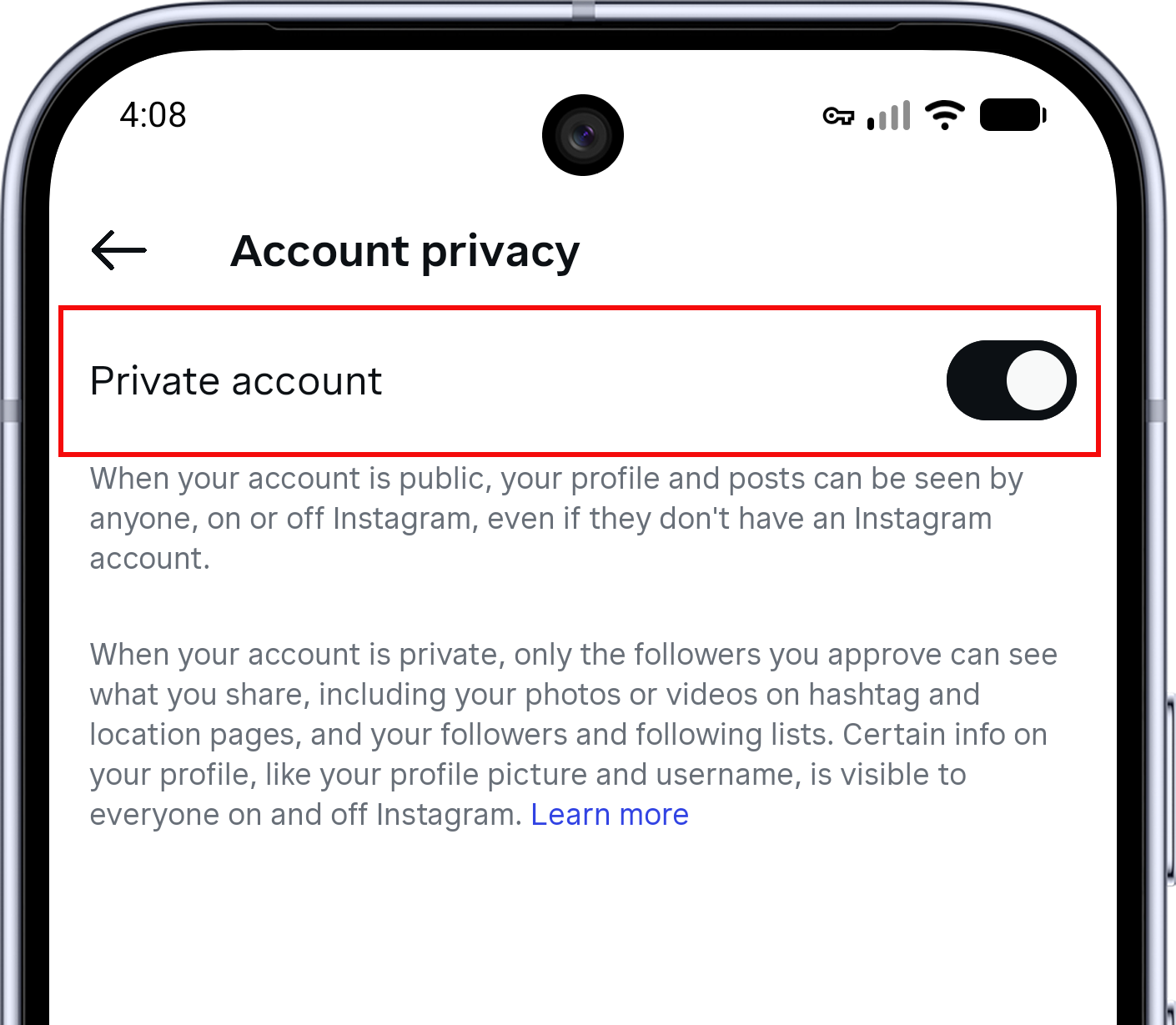
You can also make the account private. In Settings and activity, open Account privacy and enable Private account. This gives you control over new followers, but it does not filter the recommendations Instagram shows you.
These settings solve a different problem from Sensitive Content Control: they reduce who can reach you, while Less reduces what Instagram recommends to you.
For parents and guardians: set up supervision for a teen
Instagram Teen Accounts already include stricter default protections. Parents and guardians who want additional oversight can set up supervision, but both people need Instagram accounts and the teen must approve the connection, as Meta explains in its parental-supervision guidance.
From the parent or guardian's Instagram account, open Settings and activity, then choose Supervision for Teen Accounts.
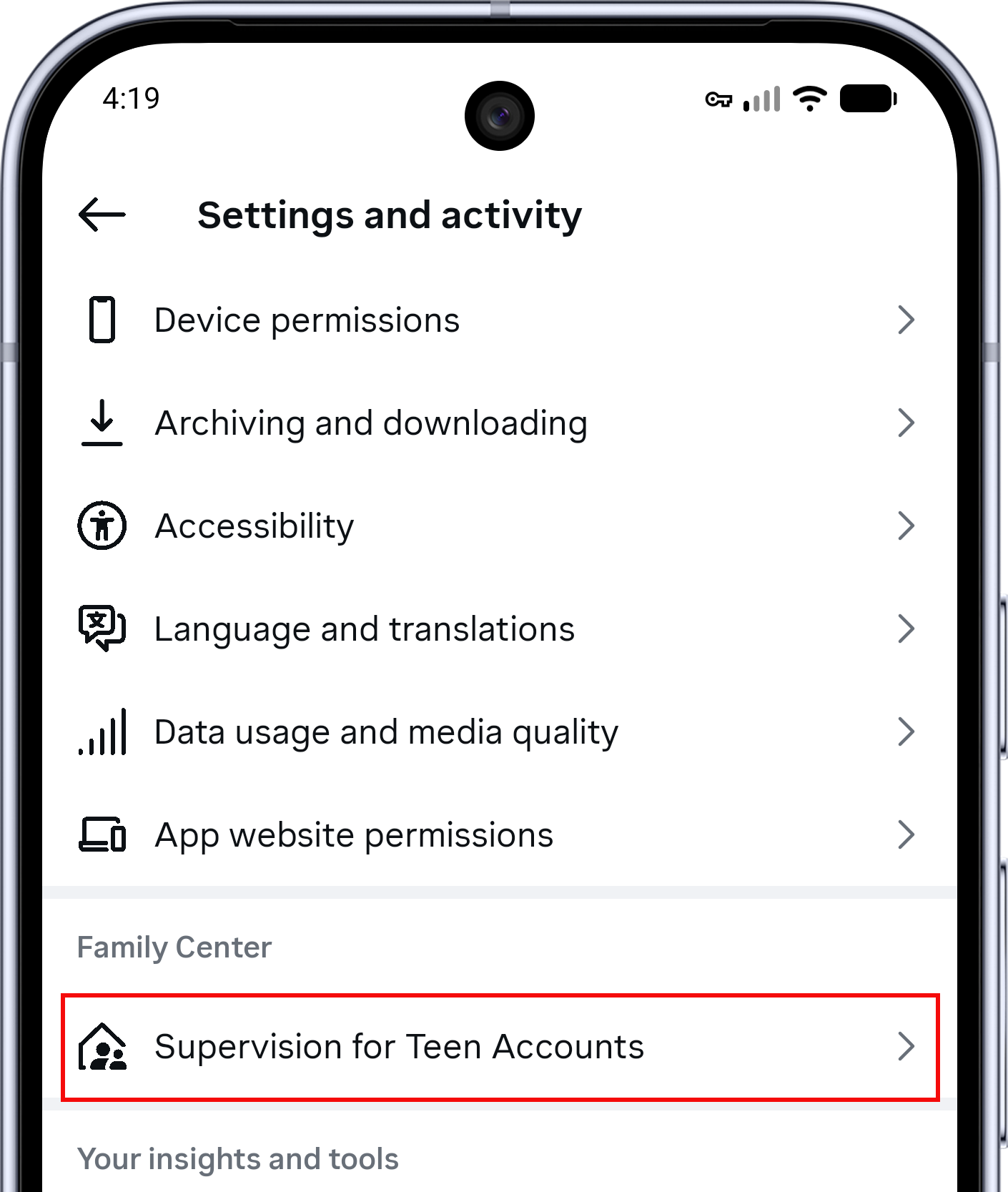
Instagram explains what the supervision connection shares before setup begins. Read that screen, tap Continue, and send the invitation to the teen; supervision starts only after the teen reviews and approves the request.
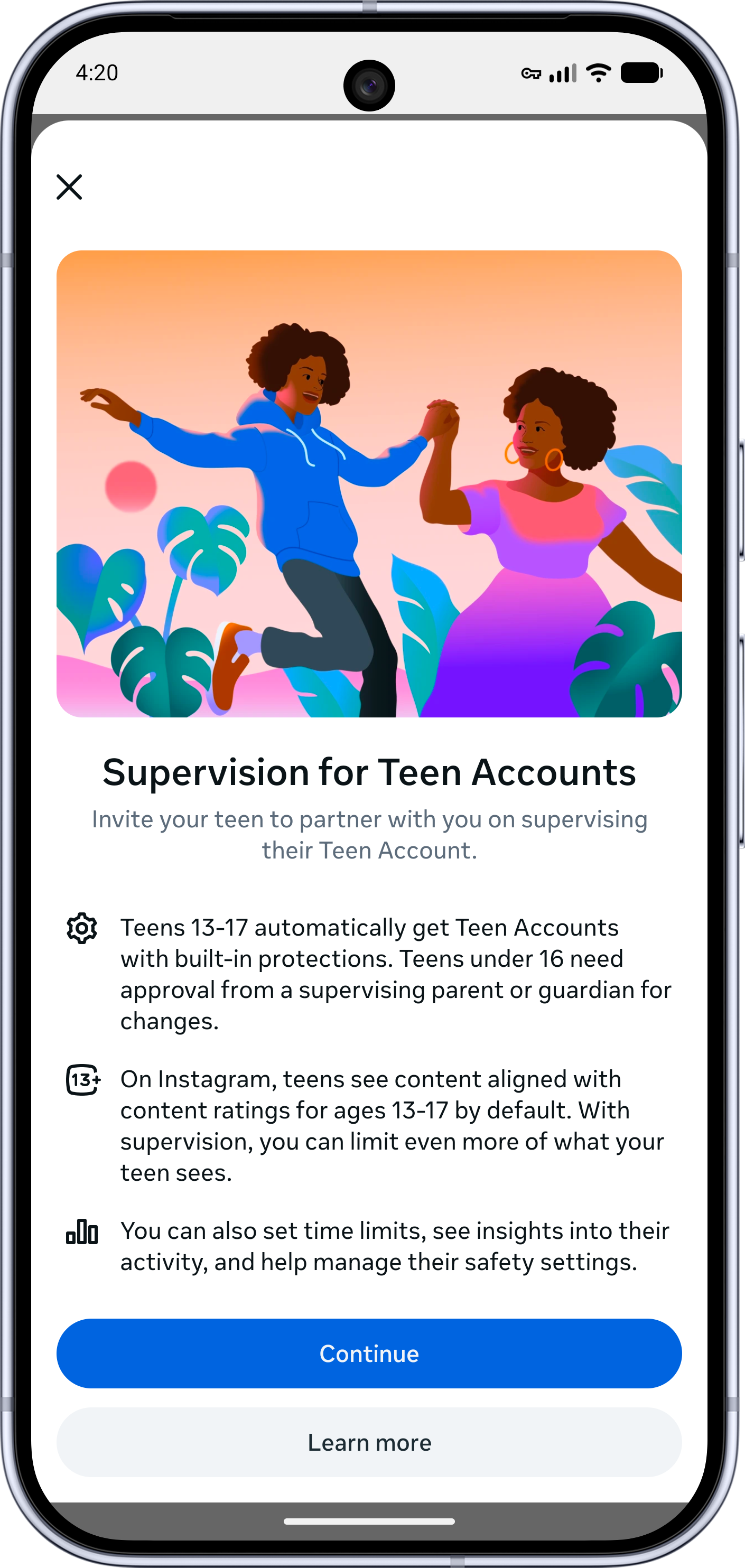
Meta says Teen Accounts use the strictest sensitive-content setting and limit who can contact teens. Those protections are useful, but they still depend on correct account information and Instagram recognizing the material, so they should sit alongside honest conversations and device-level family controls.
Remove old shortcuts and interaction signals
Filtering future recommendations is only part of the job if unwanted material is still one tap away in your own activity. Review past reposts, saves, likes, and comments that lead back to material you no longer want; this removes those shortcuts and makes your current preferences clearer, but it should not be described as a guaranteed algorithm reset.
Remove unwanted reposts
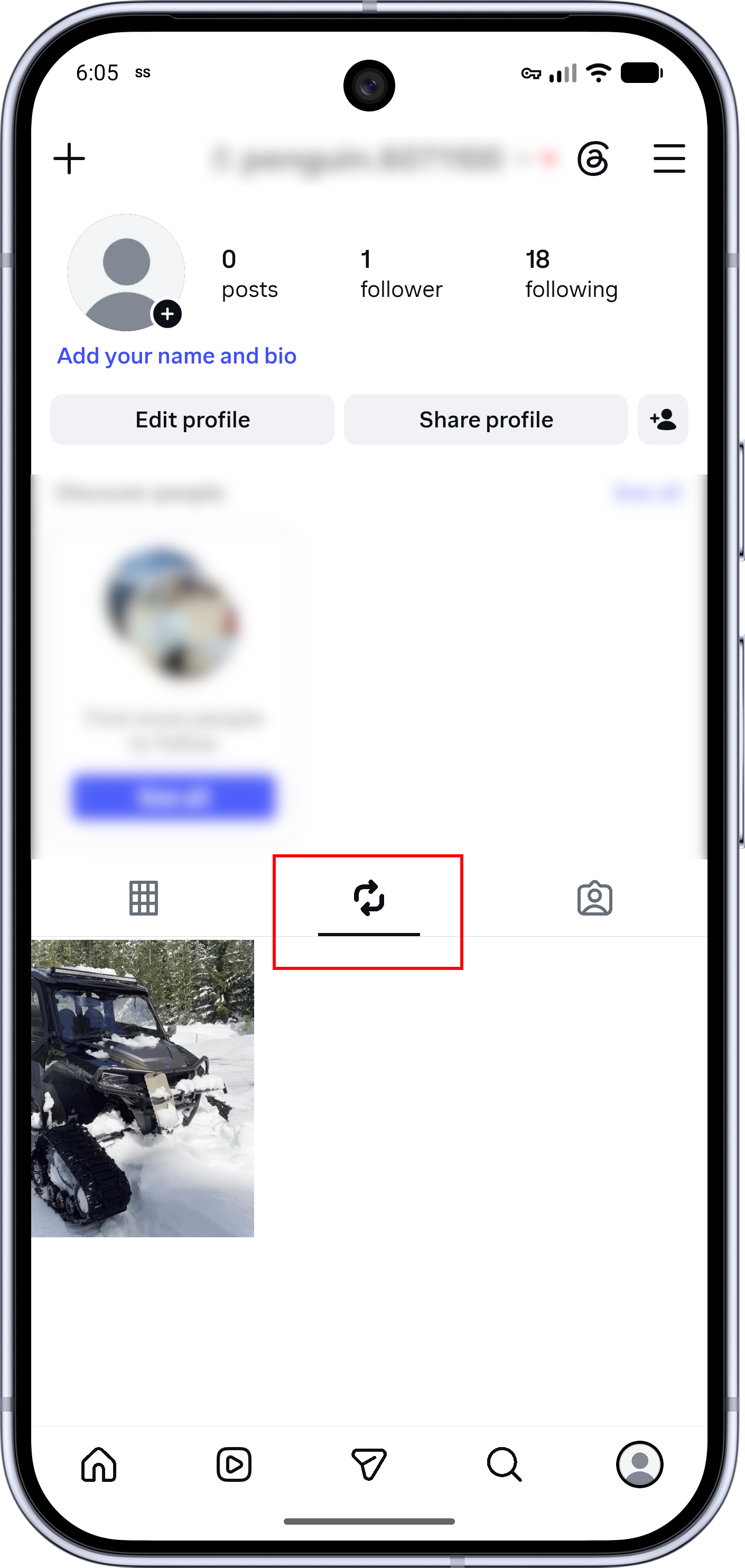
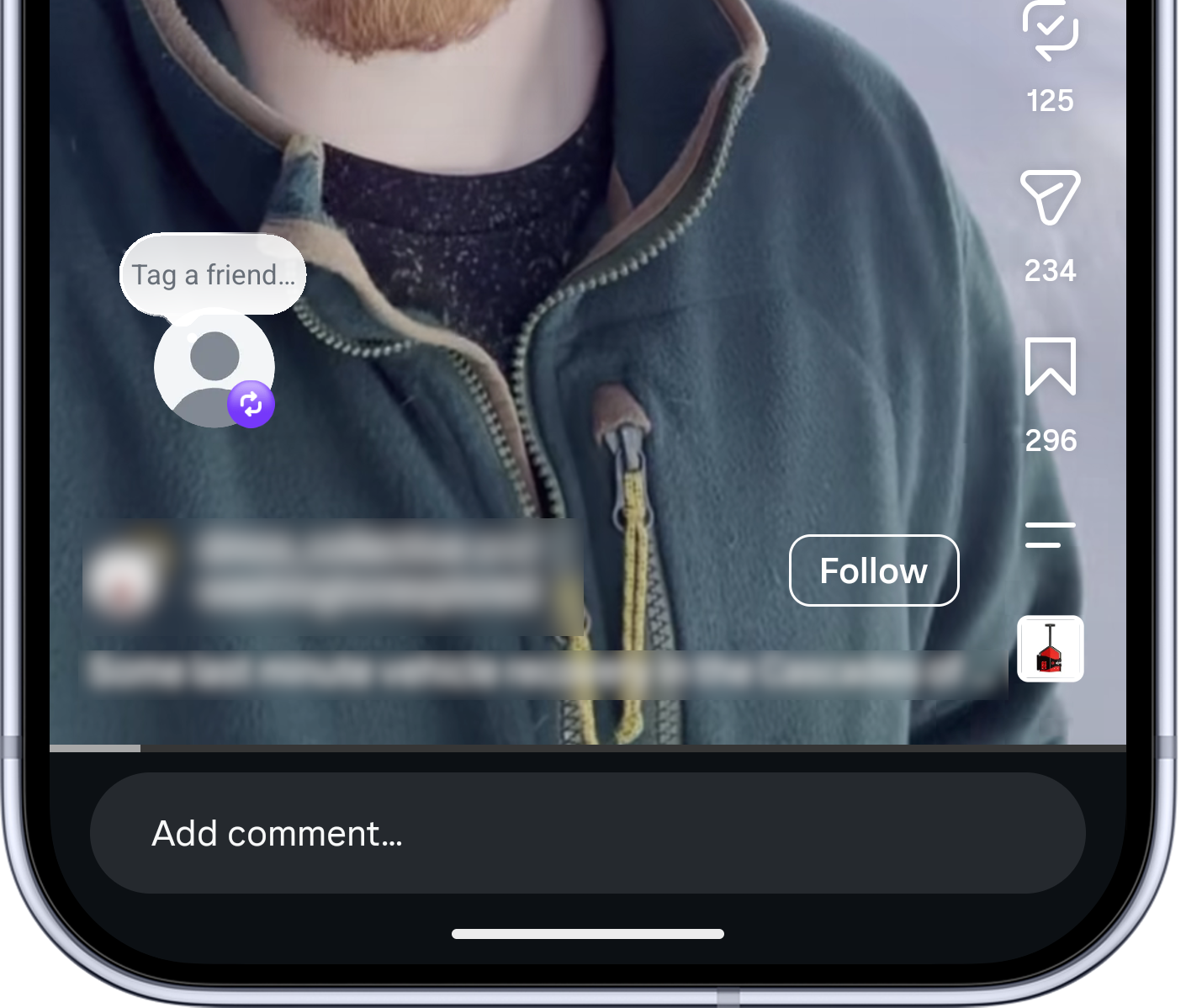
Open your profile and choose the Reposts tab. Open any Reel or post you no longer want attached to your profile, tap the highlighted repost control, and confirm that you want to undo the repost.
Clear saved posts you do not want to revisit
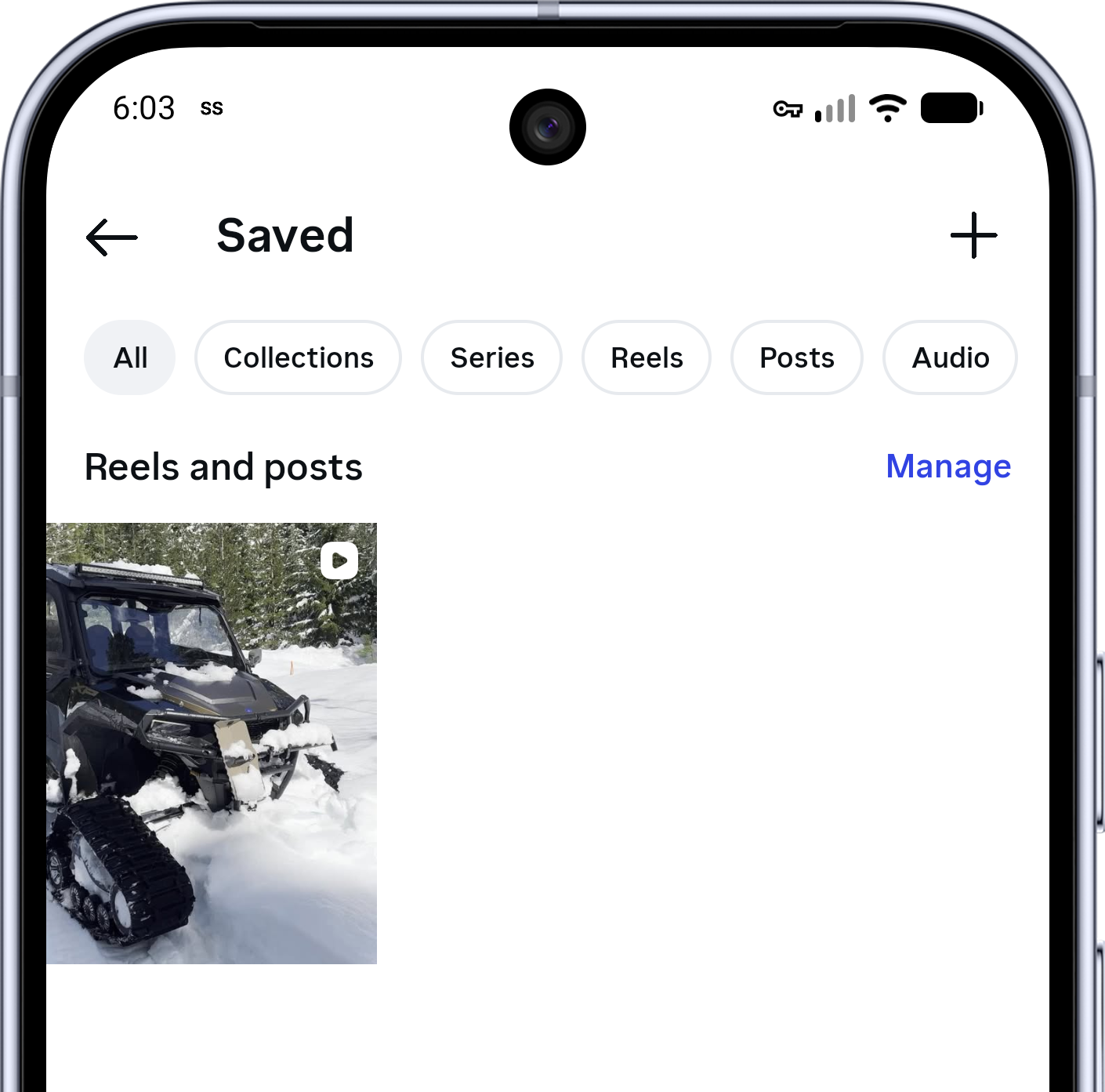
From Settings and activity, open Saved. You can also open Your activity from the same screen to review other kinds of past interactions.
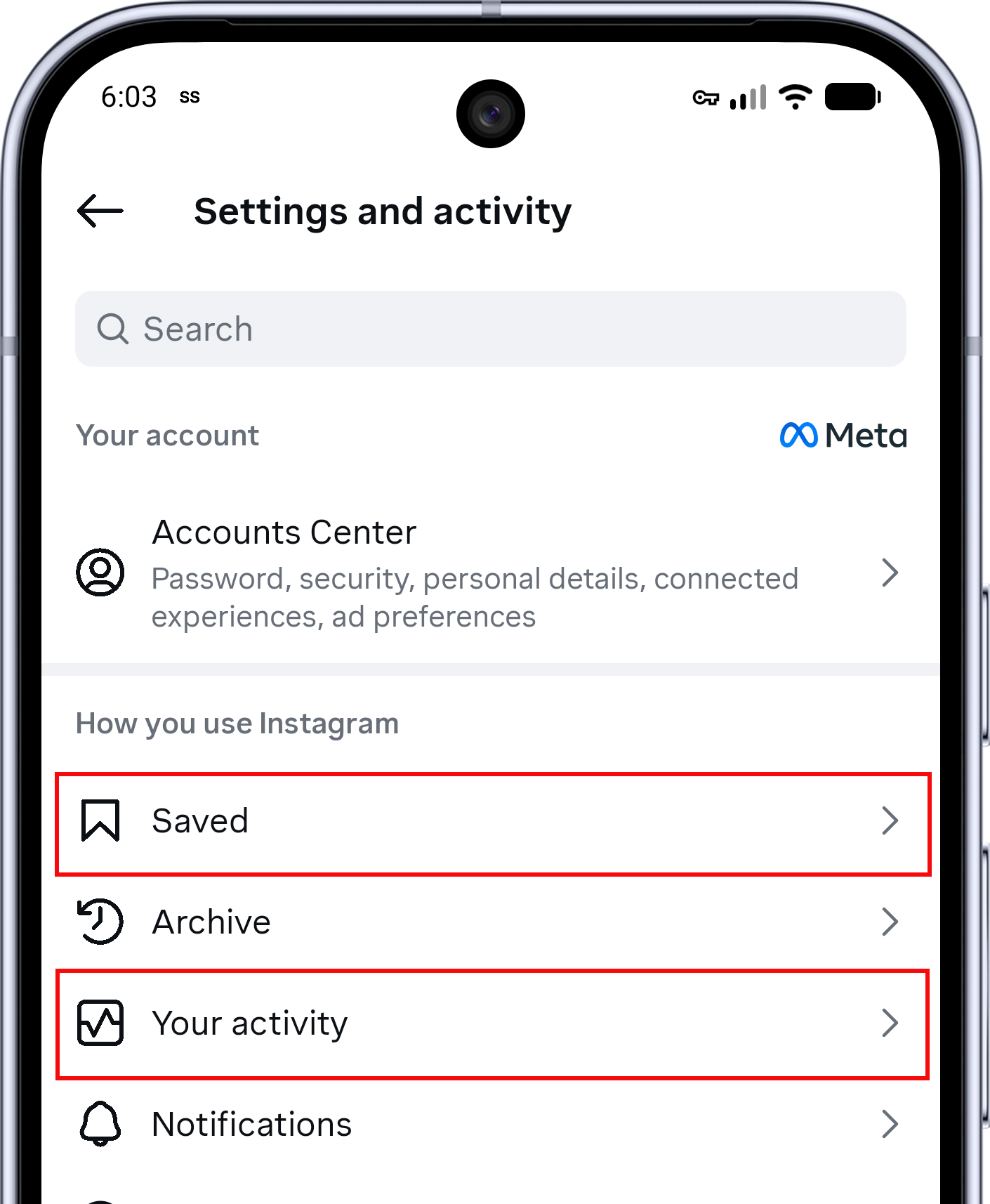
In Saved, open the post or Reel you want to remove.
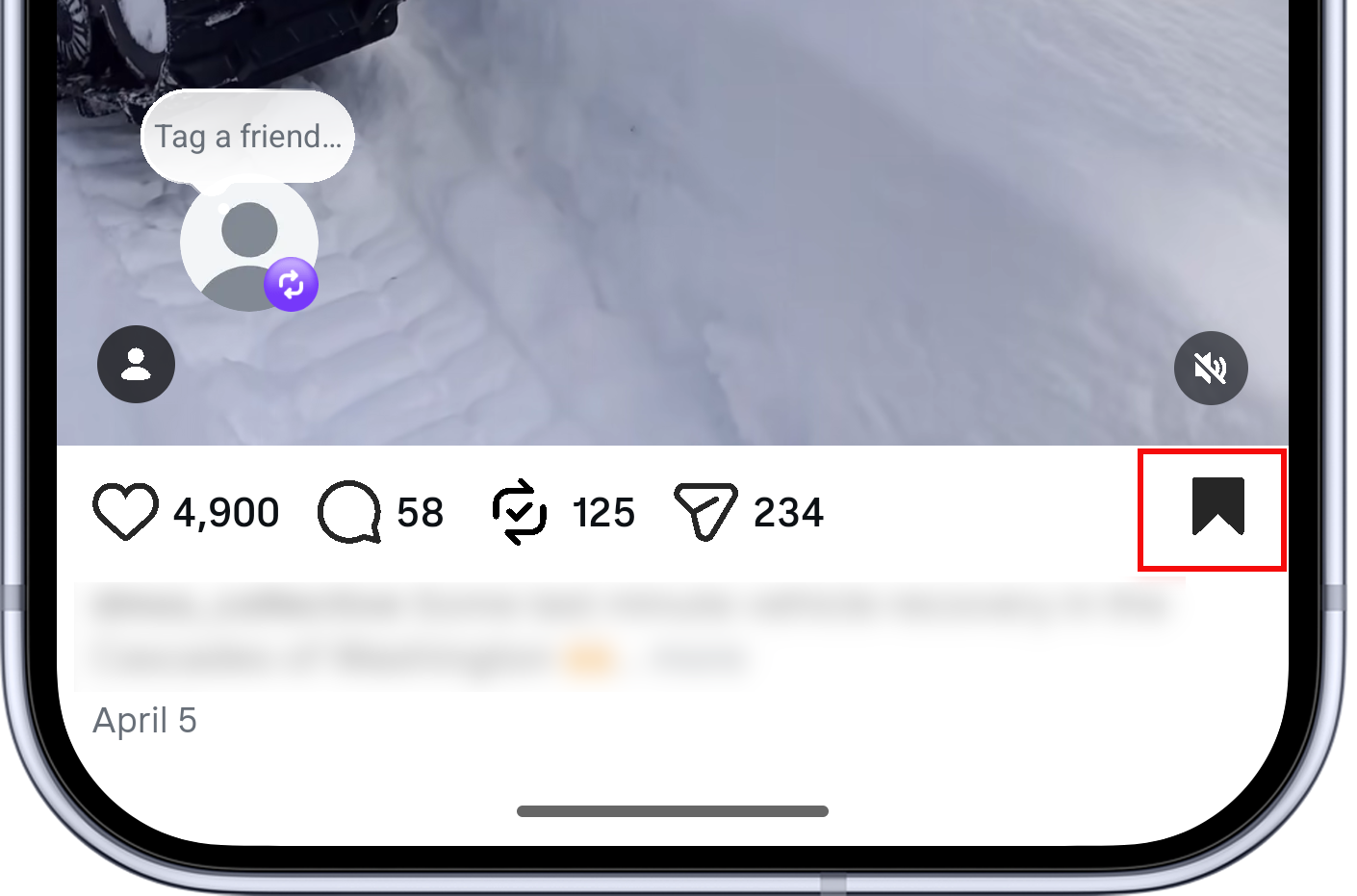
Tap the filled bookmark icon to unsave it. Removing a save closes a private return path; it does not report the post or remove it from Instagram.
Review recommendation feedback, likes, and comments
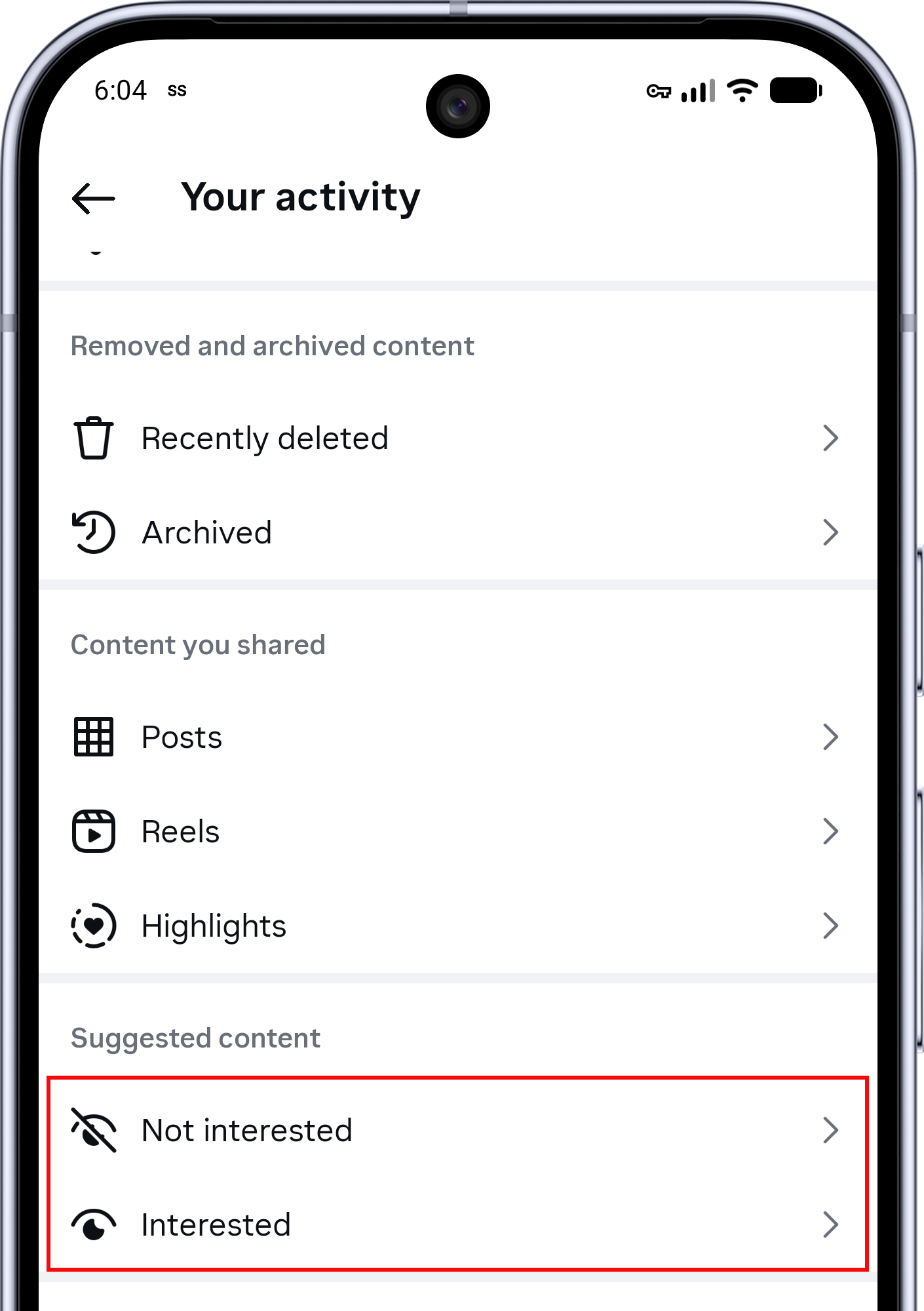
Open Your activity to review the posts you marked Not interested or Interested. Correct an accidental choice here so your explicit recommendation feedback matches what you want now.
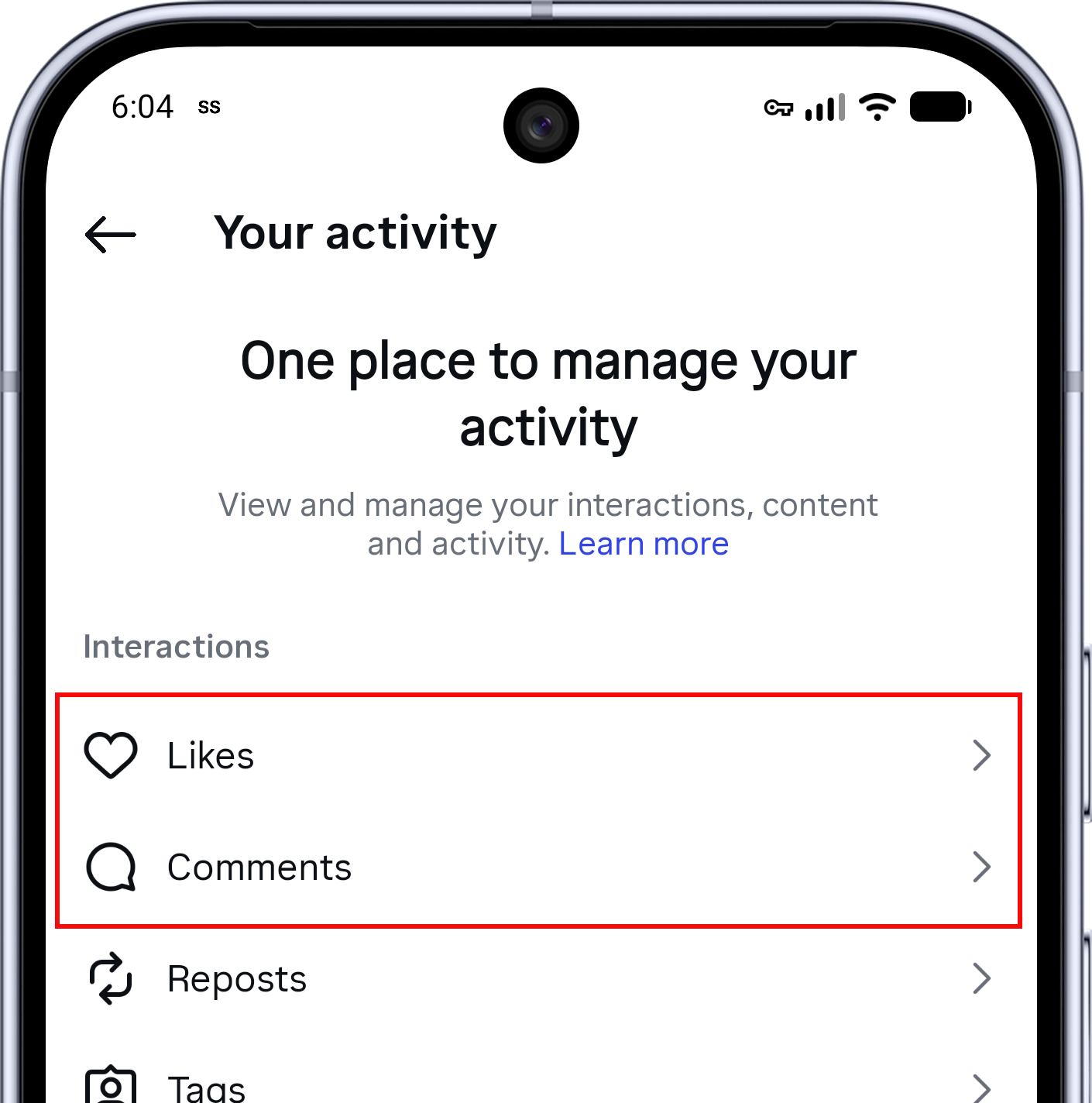
The same area contains Likes, Comments, and Reposts. Meta says interactions with content help shape recommendations, while Your activity lets you manage previous interactions; remove only the engagement you genuinely no longer want associated with your account.
Meta also offers a separate Reset suggested content option under Content preferences on supported accounts. That reset clears recommendations in Explore, Reels, and Feed so they can personalize again over time; it does not delete your saves, likes, comments, reposts, or followed accounts, so review those separately when they are part of the problem.
Add SinShield as an extra Android layer
Instagram's controls act on categories, accounts, and recommendation signals inside Instagram. SinShield for Android adds a different kind of protection: it privately analyzes what is visible on the screen and covers imagery it classifies as explicit or suggestive. That can help when a permitted recommendation, Story, Reel, or profile image slips past Instagram's own settings.
SinShield is available for Android, not iPhone. Screen analysis happens on the device, without uploading screenshots or sending activity reports to another person. Its optional local DNS filter can also block known adult domains when an Instagram link tries to open one.
No automated classifier is perfect. SinShield can miss content or cover something harmless, its permissions can be revoked, and its VPN-based DNS filter occupies Android's VPN slot. It is an additional barrier, not a tamper-proof parental-control system or a guarantee that Instagram will be completely clean.
Frequently asked questions
Does Sensitive Content Control block all adult content on Instagram?
No. Less reduces sensitive recommendations, especially from accounts you do not follow. It cannot guarantee that every sexual or suggestive image will be removed from the feed, Stories, Reels, profiles, or messages.
Why do I still see suggestive posts after choosing Less?
The post may come from an account you follow, may not meet Instagram's definition of sensitive content, or may not have been recognized before it reached you. Unfollow or mute repeat sources and use Not interested on recommendations.
Can I put a password on Instagram's Sensitive Content Control?
Instagram does not provide a separate password for that setting on a standard adult account. Teen supervision and Android device controls can add accountability, but none should be described as impossible to bypass.
Does SinShield work inside Instagram?
On supported Android devices, SinShield can cover explicit or suggestive imagery visible on the screen inside Instagram and other supported apps. It does not change your Instagram account, read private messages as an account service, or send browsing reports to somebody else.
How do I block adult content on X as well?
X uses a different system because it permits properly labeled adult media. Follow the separate guide to blocking adult content on X for its sensitive-media, safe-search, mute, and autoplay controls.
Where to start
Start with Content preferences → Sensitive content → Less. Then spend a few minutes unfollowing repeat sources and marking unwanted recommendations Not interested. Those two changes close the most common routes without forcing you to leave every useful part of Instagram.
If content still slips through and you use Android, add SinShield as a private on-device layer. The goal is not to trust one perfect switch; it is to make an unwanted image less likely to appear and easier to leave when it does.